
01 · Home & Setup
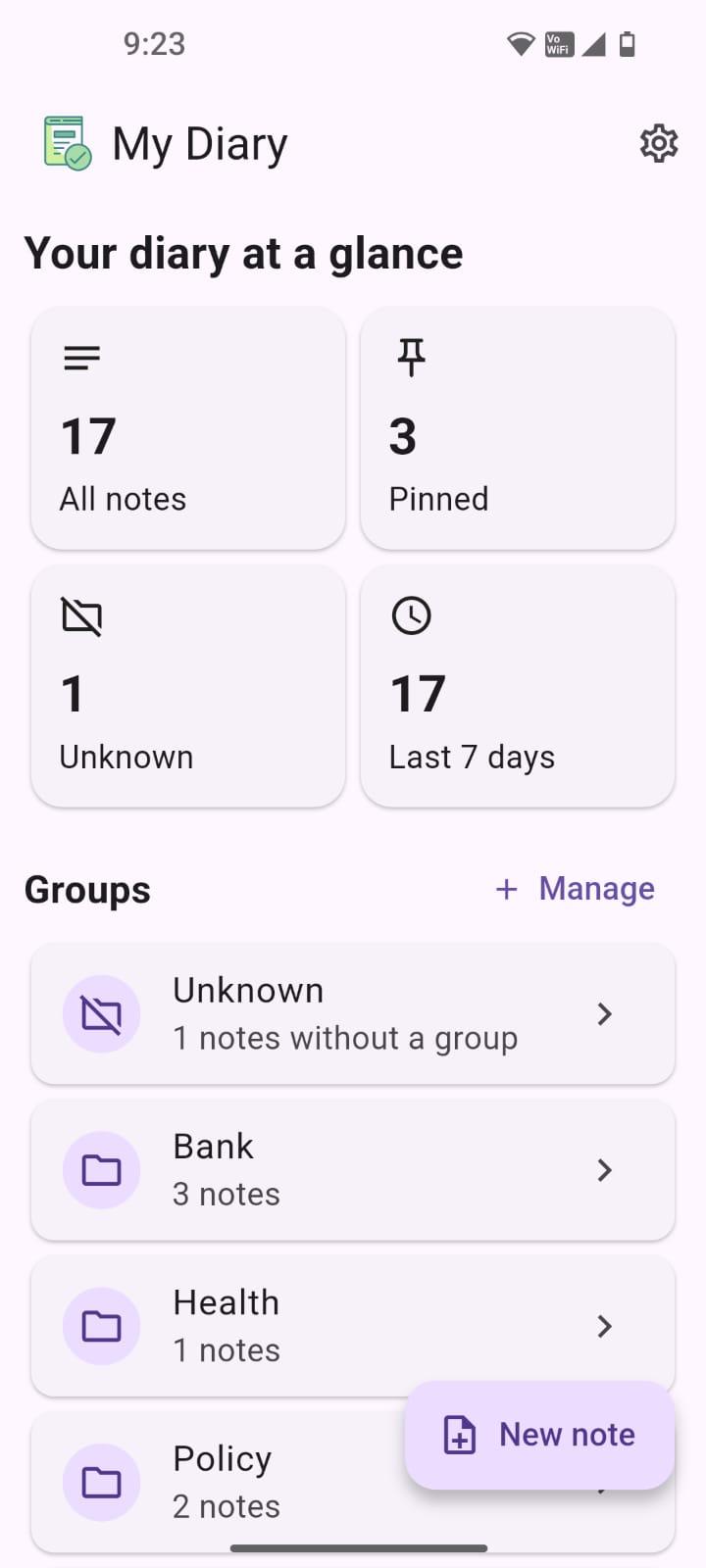
Dashboard — your diary at a glance
The home screen shows total notes, pinned notes, notes without a group (Unknown), and notes from the last 7 days. Your Groups appear below with note counts, and New note is always within reach.
A simple screen-by-screen walkthrough of notes, Groups, sharing, backup, recovery and moving your diary to a new phone.
MyDiary product tour — about 44 seconds.
Follow the journey from first setup to secure backup and restore.
The home screen shows total notes, pinned notes, notes without a group (Unknown), and notes from the last 7 days. Your Groups appear below with note counts, and New note is always within reach.
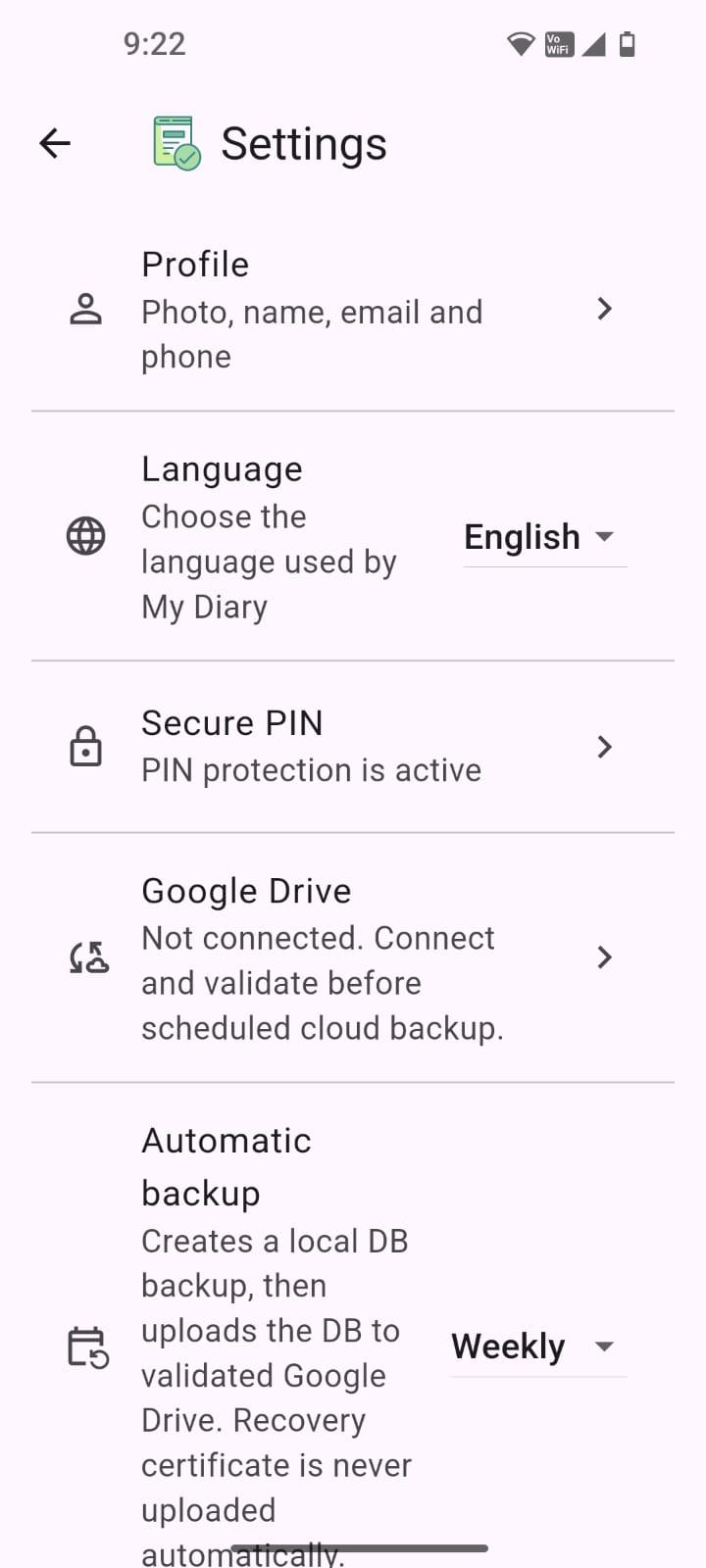
Manage your Profile, app Language, Secure PIN, Google Drive connection and automatic backup schedule (Daily, Weekly or Monthly).
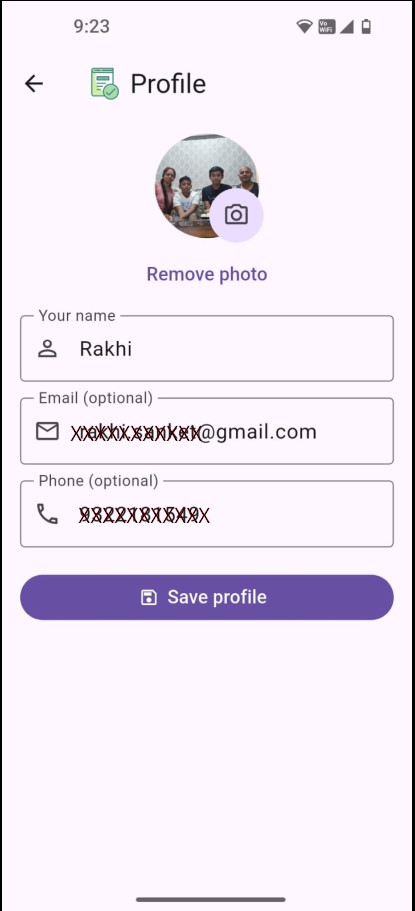
Add a profile photo, your name, and optional email and phone. These details personalise your MyDiary experience.
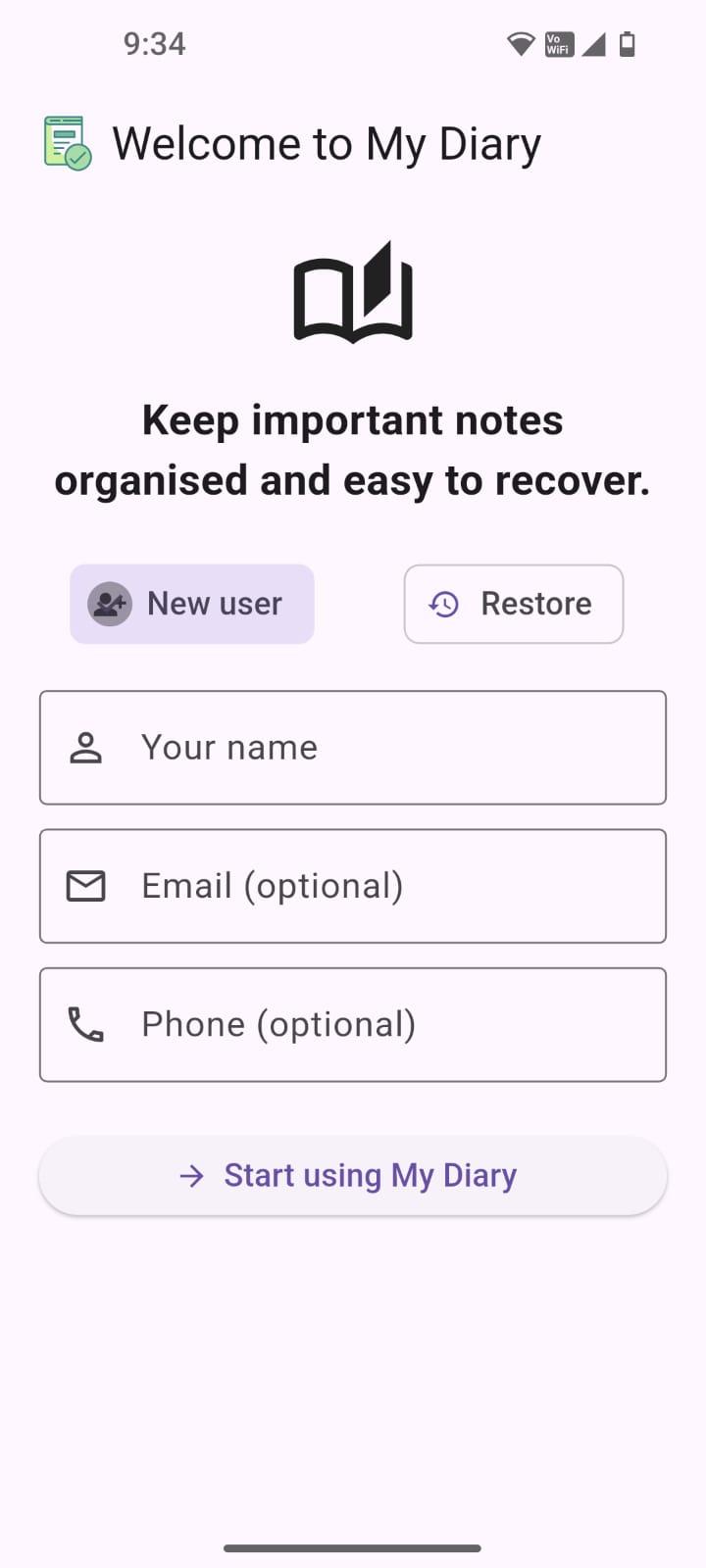
Choose New user and enter your name. Email and phone are optional. You can start using MyDiary in less than a minute.
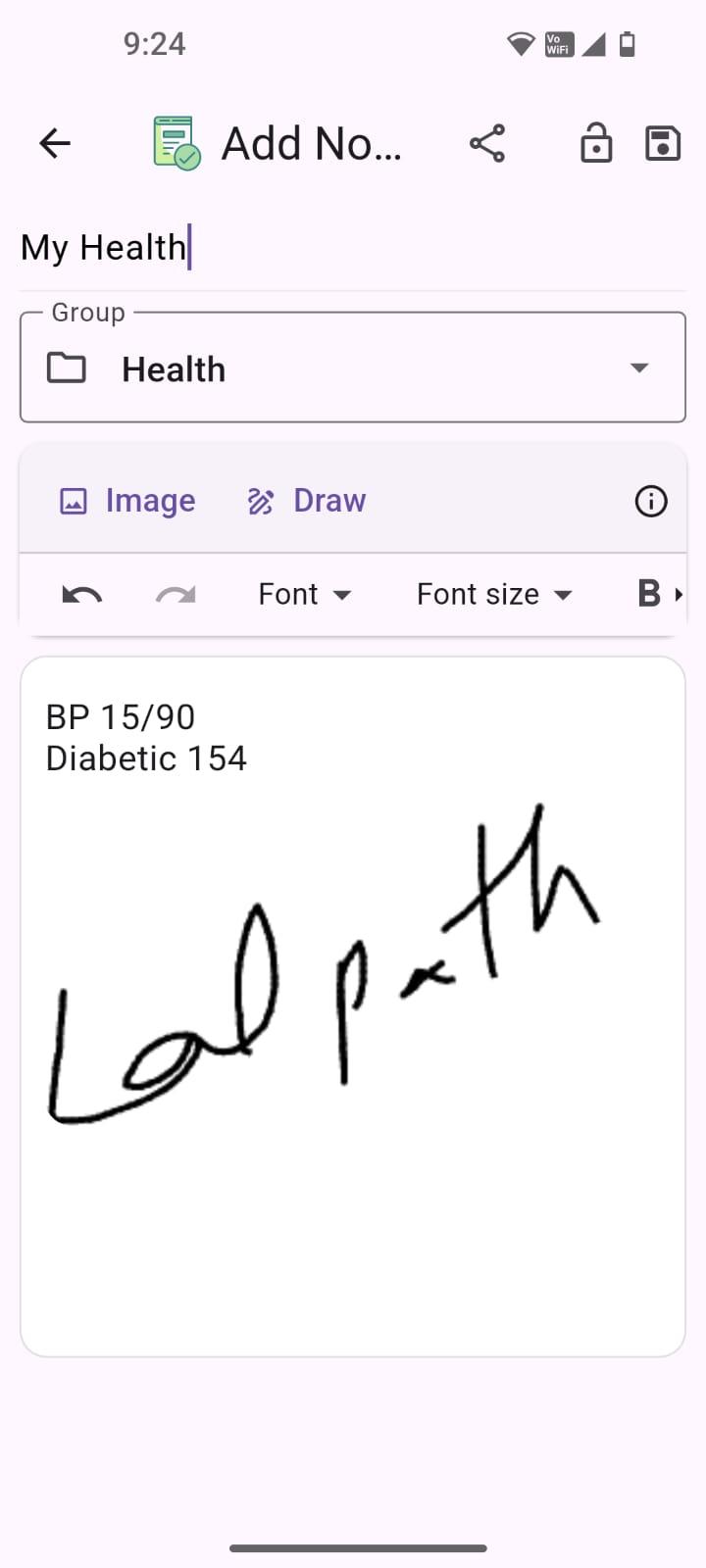
Choose a Group, format your text, insert images, or use Draw for a handwritten sketch or marking. Images and drawings stay with your encrypted note data.
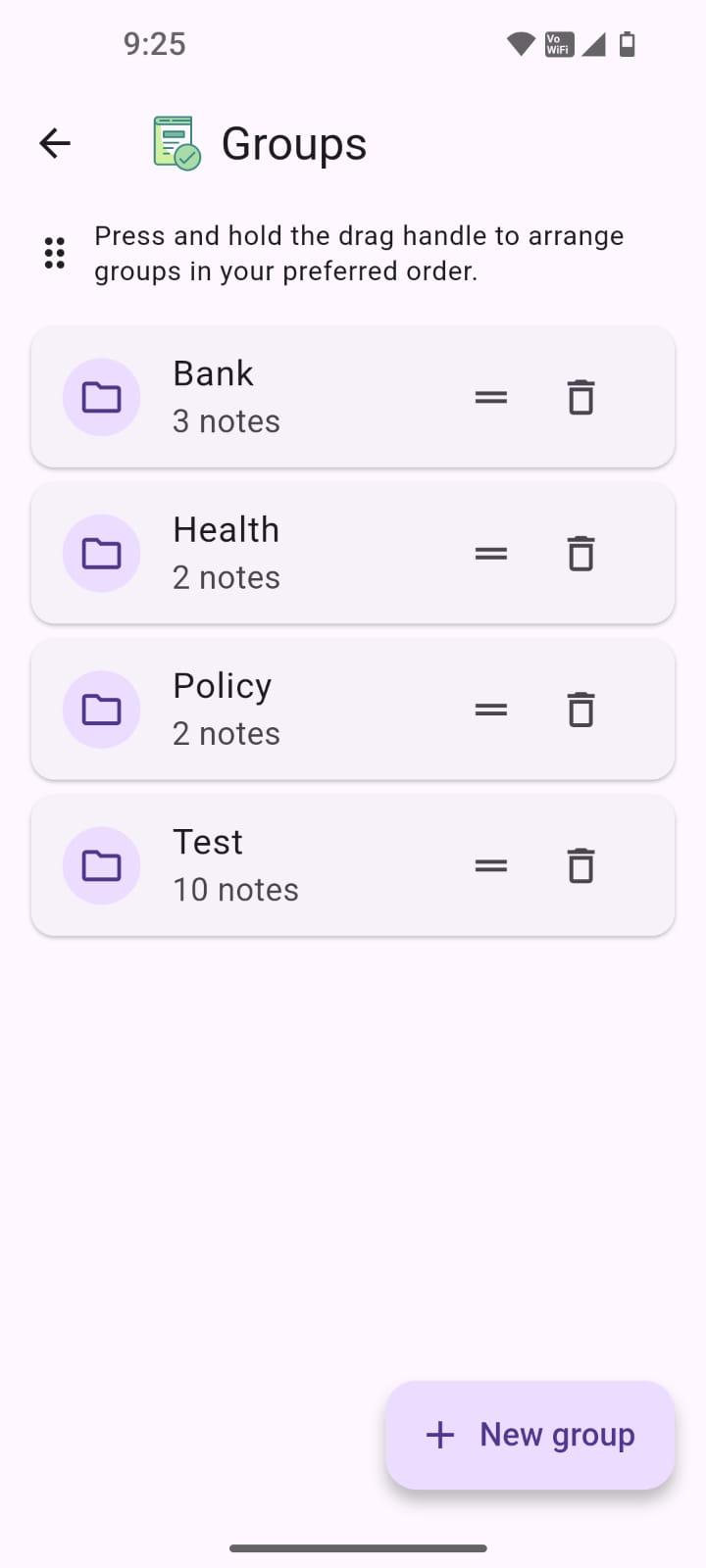
Groups such as Bank, Health and Policy keep a large diary easy to navigate. Each Group shows its note count, and Groups can be arranged into your preferred order.
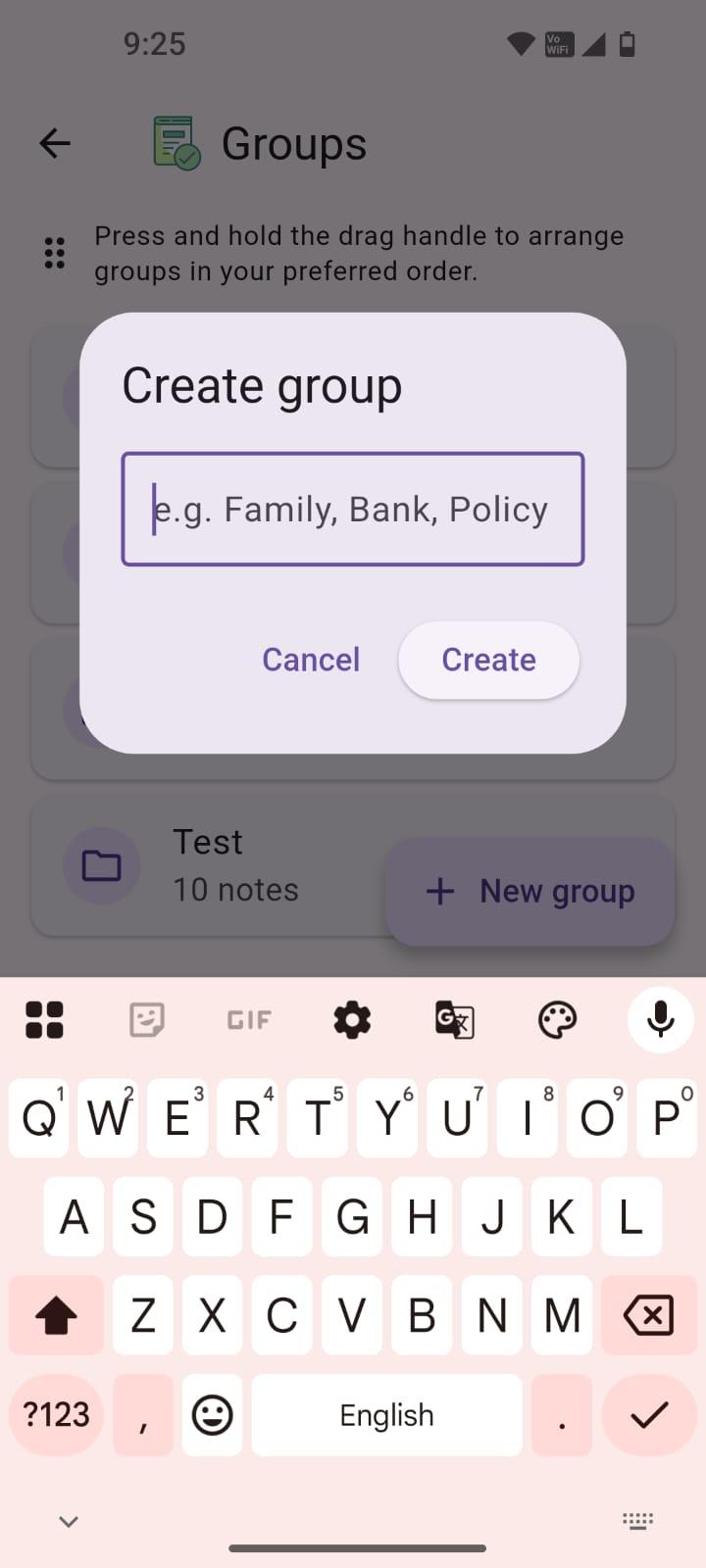
Tap New group and enter a name such as Family, Bank or Policy. Use categories that make sense to you.
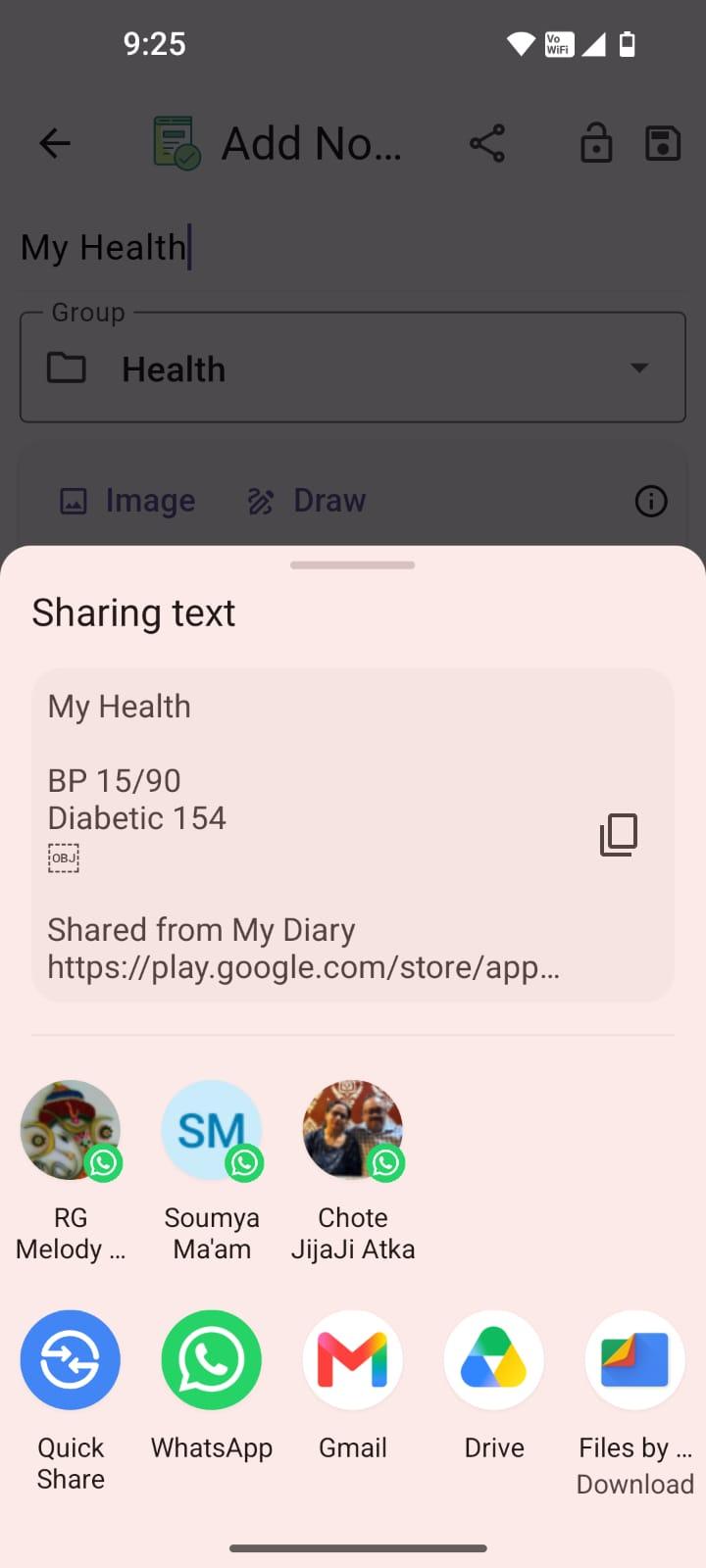
Share directly through Android using WhatsApp, Gmail, Google Drive, Quick Share and more. Shared notes include a “Shared from MyDiary” message and Play Store link.
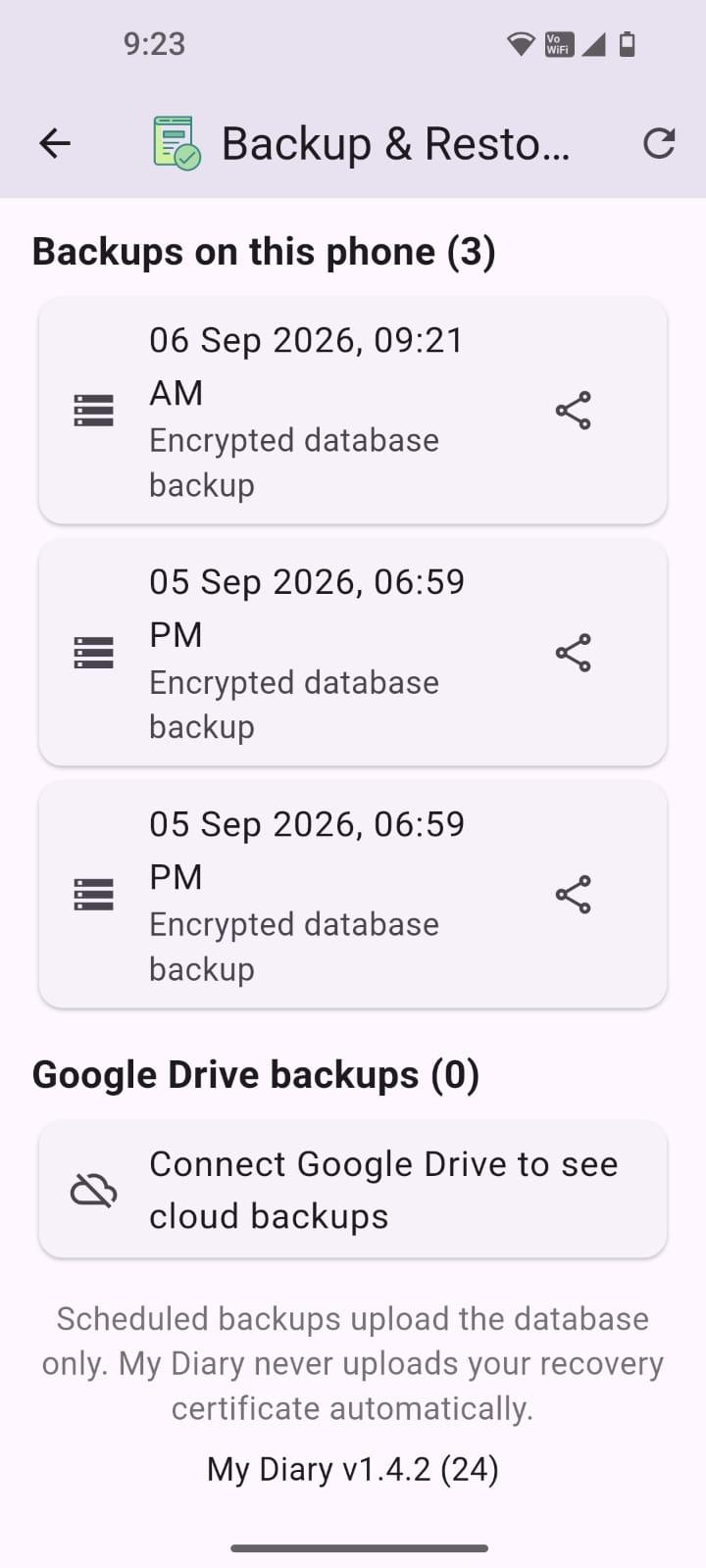
See encrypted database backups created on the phone with date and time, and share them when needed. Google Drive backups are shown separately when Drive is connected.
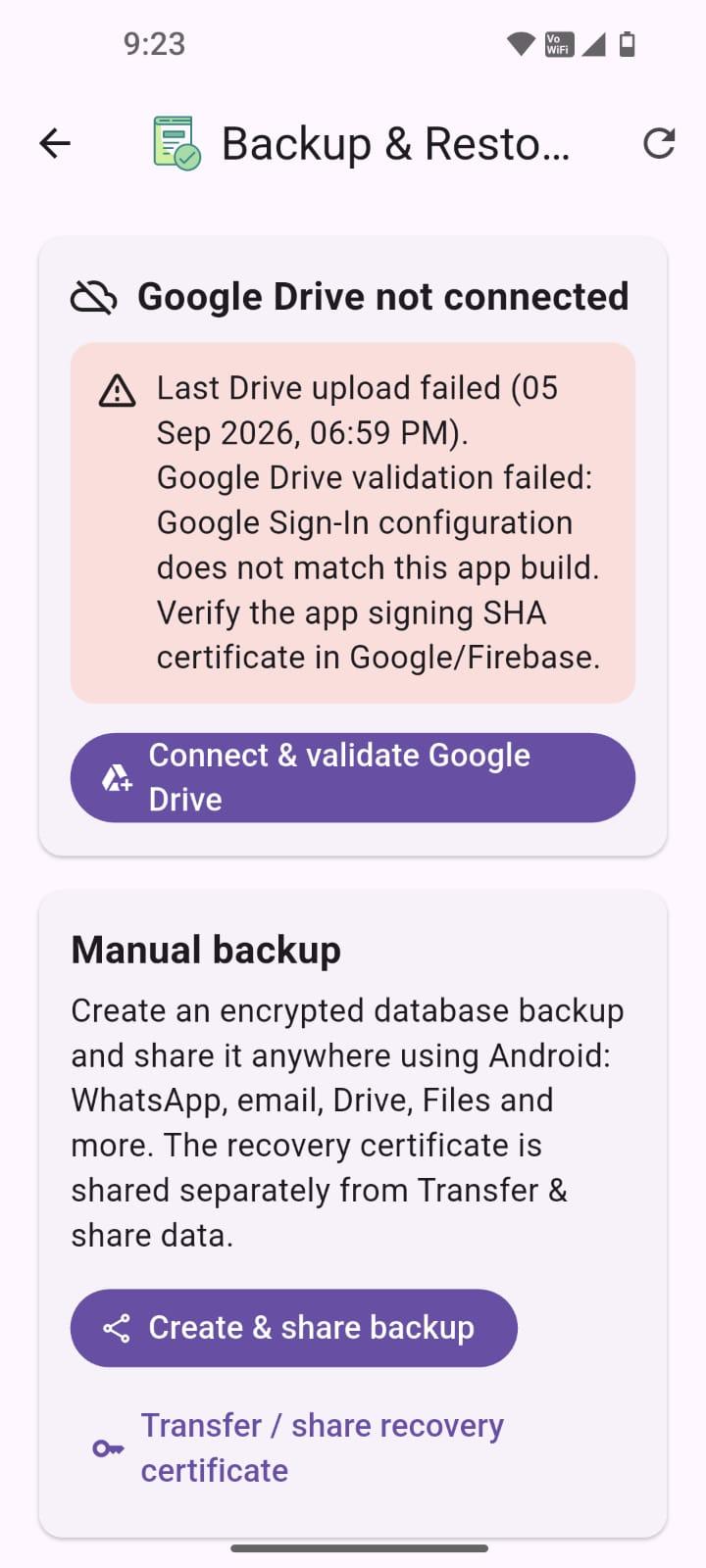
Connect and validate Google Drive for scheduled cloud backup or create a manual backup and share it anywhere. MyDiary also reports scheduled Drive upload failures instead of failing silently.
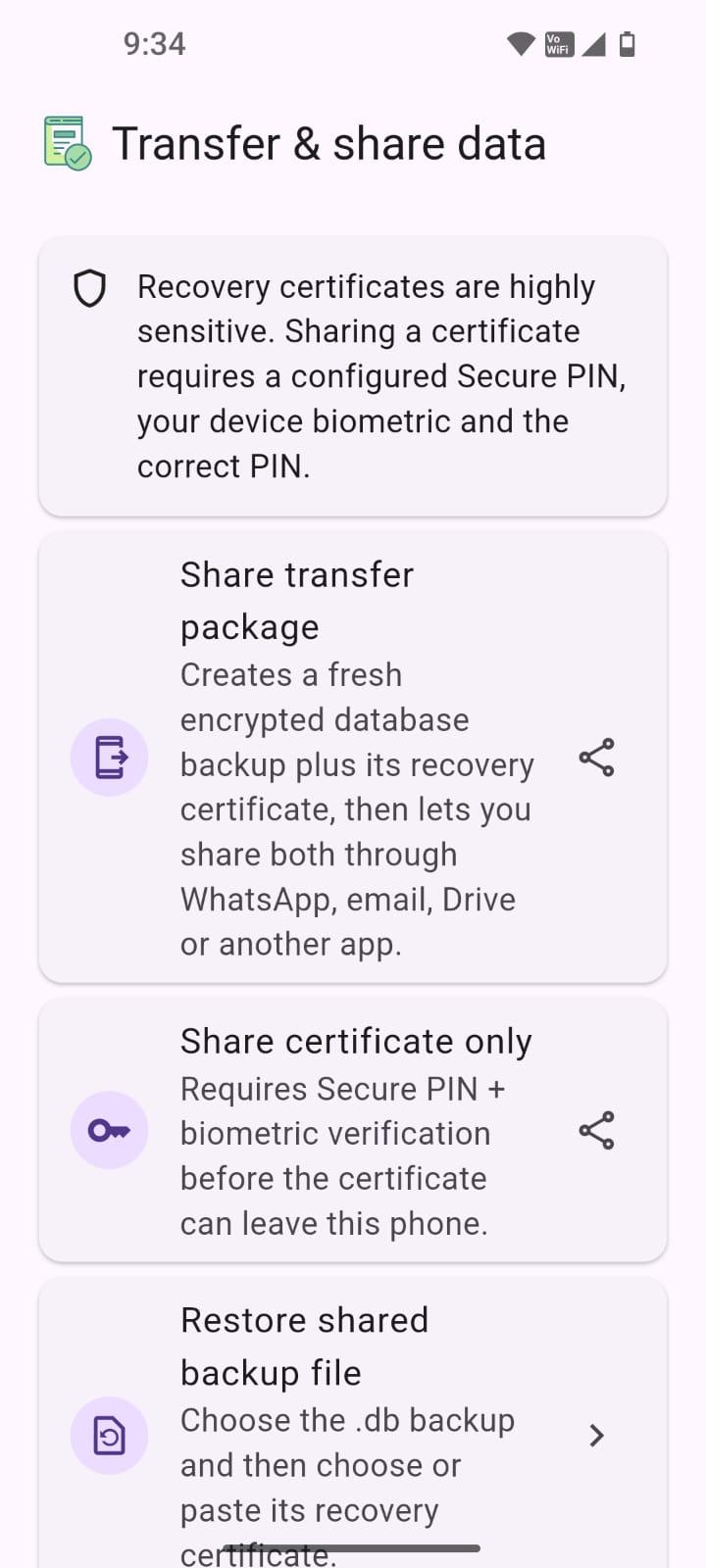
Recovery certificates are highly sensitive. Sharing one requires a Secure PIN plus device biometric verification, giving you control over how recovery information leaves the phone.
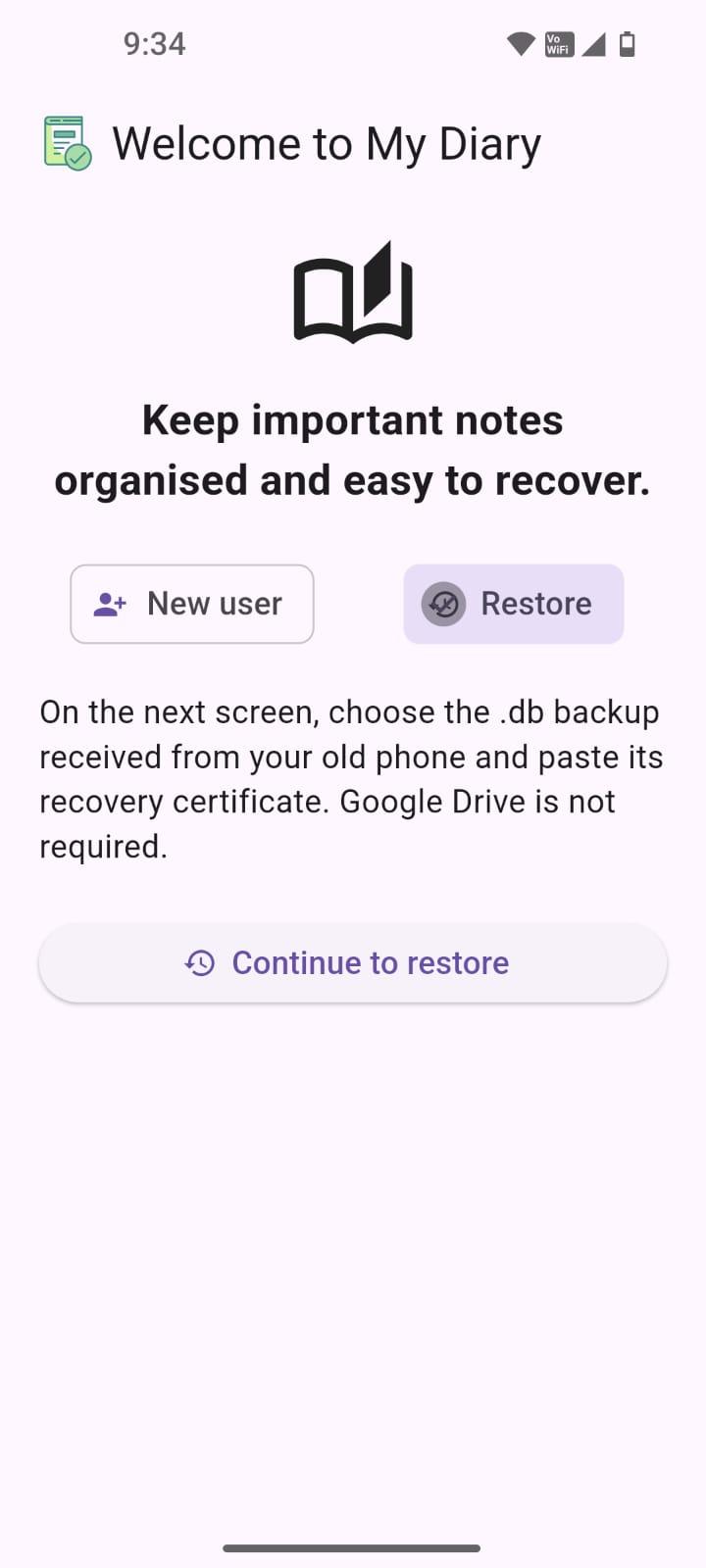
Choose Restore, select the .db backup and provide its matching recovery certificate. MyDiary validates the recovery information before replacing the local diary.
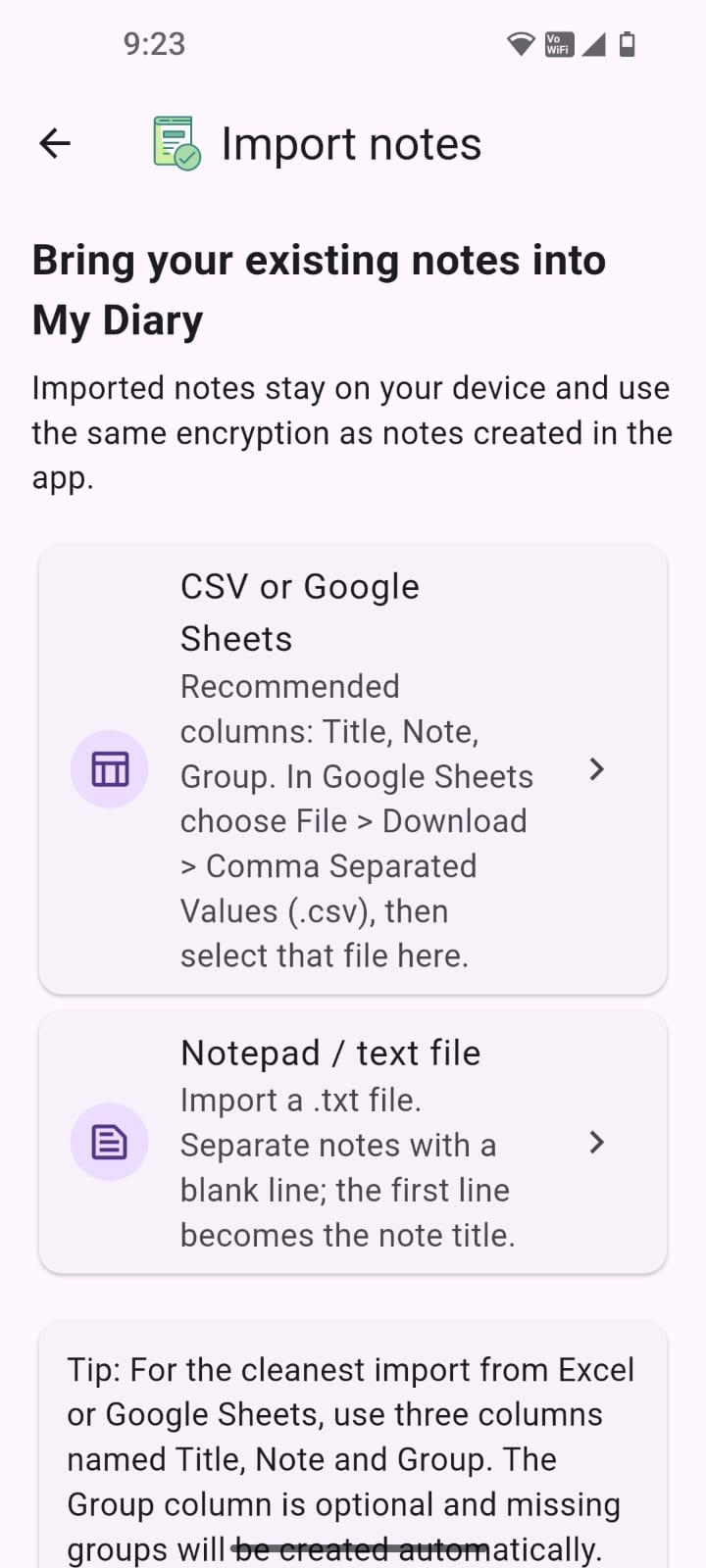
Bring in CSV/Google Sheets exports (recommended columns: Title, Note, Group) or plain .txt files. Imported notes use the same encryption as notes created in the app.
Read the Help guide for backup, security, Groups and recovery instructions.
Open MyDiary HelpGet MyDiary